 Stefan Vaskevich
The AI 3D models market sits at $1.16B in 2026 and is projected to hit $12.1B by 2035 at roughly 19% CAGR, per 360iresearch and Global Growth Insights. 44% of that demand is gaming and entertainment. The question for indie creators stopped being “will AI replace traditional 3D” a year ago. The question is which stack you ship with on Monday.
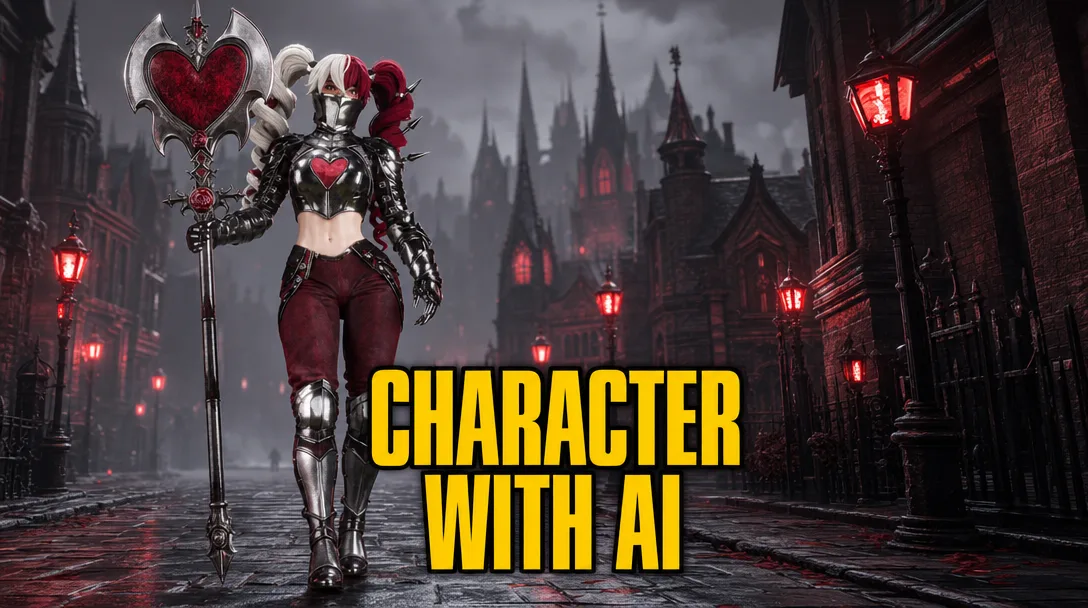
For the last six months I've been hammering on this: testing every new AI 3D tool against a real character that has to survive a real engine handoff. Not a static turntable, not a marketing render. A rigged character that animates in Unreal Engine 5 without T-pose drift or clipping. The character I used to stress-test the pipeline is a Plague Doctor Demon Hunter, and you'll see it at every stage below.
The traditional subscription stack adds up fast. ZBrush is $49/month, Substance 3D Texturing is $24.99/month, Maya is $1,545/year. That's about $2,000 a year before you ship a single character. The free stack below produces output that holds up next to it. By the end of this article you have the whole chained pipeline, not just a tool list. We curate it on /arena and /leaderboard so you can audit the work yourself.
How do you generate a high-quality 3D character concept for free?
Concept comes first because everything downstream amplifies what's already in the reference. A weak concept becomes a weak mesh becomes a weak texture. The fix isn't a Midjourney subscription. The fix is Google AI Studio running the Nano Banana model on its free tier.
Nano Banana handles complex multi-part characters well. For the Plague Doctor I started with a one-line prompt, then iterated by chat: remove the hat, add a crossbow, tighten the silhouette, push the leather darker. Natural-language refinement loops are the reason this beats a static prompt-to-image generator. You don't start with a blank canvas or a rough sketch you wish was sharper. You start with a production-grade reference that already dictates the complexity of your final 3D model.
The trick most people miss: split the character into parts before you generate the 3D mesh. For the Plague Doctor I broke it into nine separate assets. Body alone, hands, boots, overcoat, crossbow, belt, hat, hair, mask. Each part gets its own Nano Banana generation pass, often as a single-asset extraction prompt against the full character reference. That decision controls what gets to move and react later (the overcoat, the hair, the mask) versus what gets baked into the body silhouette. For complex characters split into more parts. For simpler ones split into fewer. You learn the right granularity after the second or third character.
“Even the free version is extremely capable. The day Nano Banana was announced, it was already crazy good.”

For the prompting strategy that gets clean results on the first three iterations, see our deep dive on how to create the best 3D character references. That article covers the per-view setup (front, 3/4, side, back) you want before handing the concept to a 3D generator.
Stage 2: AI mesh in Hunyuan 3D Studio 3.1
The mesh stage is the engine of the whole pipeline. I run it through Hunyuan 3D Studio 3.1, which produces a quad-based base mesh that is 80 to 90% production-ready. Wireframes are clean enough that retopology becomes a refinement pass, not a from-scratch rebuild. The free tier on the global version gives you 20 generations. The Chinese version gives you up to 30. Either is enough to ship multiple characters.
I work in the character workflow inside the studio. Single-image input is what I use most of the time. Multi-view is available, and it sounds smarter, but I only reach for it when I need to lock something specific from the back side that the front view doesn't describe well. For most assets, single-image gets cleaner geometry. At this stage I only generate geometry. No textures. We are taking it seriously, so all we want from Hunyuan right now is clean topology to build on.
The pro tip nobody mentions: don't accept the first generation. I run 3 to 4 passes per character and pick the cleanest wireframe. The variance between attempts is real, and the first result is usually not the best one. Costs you 15 extra minutes and saves you two hours of cleanup downstream.
“It's never 100% enough for any medium-complexity assets. The secret is using the AI-generated mesh as a high-quality base.”

Stage 3: Sculpt cleanup in Blender
Blender shows up here, but not in the way most tutorials want you to use it. I'm not sculpting from scratch. I'm using a tiny set of tools to align AI-generated parts into one cohesive silhouette, fix imperfections, and cap holes left by the generator. We tested every brush, argued about every workflow, and the answer is surprisingly simple. Four tool families cover almost everything you actually need.
The first family is the Grab brush and its relative Elastic Grab. This is the brush I use 80% of the time. It's the digital-clay tool. You push the overcoat in, you pull the shoulders forward, you fix the slight pose drift on the right hand. AI-generated characters often come out as separate-feeling components: boots, mask, overcoat, crossbow strap. Grab and Elastic Grab let you adjust proportions and unify the silhouette in five to ten minutes.
The second family is masking. There's a lasso mask and a mask brush. Both let you select parts accurately. Inside the mask menu there's a cut-mask option that creates a clean cut and fills the hole, so you can keep sculpting on the new boundary. Use cases: remove parts that will be covered by another object (the head under the mask, the legs under the boots), cut feet because the boots come in separately, cut arms because the hands come in separately, or combine the good parts of two different generations into one body.
The third family is the smooth brush. Sounds obvious, but the use case is specific. I smooth the head because the mask covers it. You don't need to sculpt detail under geometry that will never be seen.
The fourth family is Inflate plus Remesh. This is the hole-cap combo. Edit mode is awful for capping complex holes. The Inflate brush adds volume around the rim, and then Remesh recalculates the whole topology and seals the hole automatically. You find the right Remesh value by testing. It also melts the underlying topology, which is fine because retopology in Stage 4 rebuilds it cleanly.
“These four simple things that I mentioned is more than enough to achieve 90% of any results.”

AI gave us the volume. Now we make the topology engine-ready. If you want a deeper dive into where Blender sits next to dedicated AI sculpt tools, the top 3 AI models for sculpting comparison covers that tradeoff.
Stage 4: Retopology with Hunyuan auto + Retopoflow
Retopology used to be the longest, most skill-dependent grind in the pipeline. Now it's mostly automated. I export each cleaned-up object one at a time and drop it back into Hunyuan 3D Studio's retopology tool. You pick a target face count (low, medium, or high) and choose quads. I usually run three to four generations per object until I get a wireframe I like. The result is rarely 100% enough for medium-complexity assets, but it gets you 80 to 90% of the way to game-ready topology.
The remaining 10% is precision work, and Retopoflow is the Blender add-on that handles it. Retopoflow is free as long as you're not using it commercially. If you're symmetric, mirror first, fix one side, mirror back. Saves a lot of manual touch-up time.
Retopoflow has a full suite of tools. Most of them you won't use. The three that matter are Polypen, Relax, and Contour. Polypen for adding or moving individual quads. Relax for smoothing topology along a surface. Contour for cleaning loops around curved areas. Where these matter most: loops around joints (shoulders, elbows, knees) and around the eyes. Those are the regions where deformation lives. Bad topology there shows up the moment the character animates.
“Mastering just the Polypen, Relax, and Contour tools allows you to fix loops around joints and eyes in minutes.”

For the side-by-side data on which AI tools produce the cleanest topology before manual cleanup, see the retopology comparison 2025 test. Hunyuan won that one on geometry distribution.
Stage 5: UV unwrap with Hunyuan auto-UV + UV Packmaster
UV unwrap used to be the second-most painful stage after retopology. AI auto-UV makes it almost a non-event for simple objects. After the wireframes are fixed, I export the objects back to Hunyuan 3D Studio and run them through the auto-unwrap tool. For simpler shapes (the body, the hat, the belt) the result is fantastic. I do a couple of regenerations to pick the best one, just like with the mesh stage.
“This is how AI unwraps my body. I think it's fantastic.”
For complex objects, auto-UV can fail completely. The boots failed for me. When that happens, fall back to Blender. Mark seams along the natural edges of the wireframe, then unwrap. If you have clean topology from Stage 4, drawing seams is a five-minute job, not a half-hour grind. Honestly, UV unwrapping is probably the easiest thing in the whole pipeline, as long as your retopology was done right.
The step most beginners skip is packing. Blender's default pack-islands is not enough for production. Use UV Packmaster, a free Blender add-on. It packs UV islands tightly with a configurable pixel margin tied to your target texture resolution. For the Plague Doctor I manually unwrapped the bottle and the crossbow, then packed them onto a shared texture set with the body. That is what you do for objects that don't need their own dedicated 2K or 4K map. Blender's built-in packer wastes texture space; UV Packmaster doesn't.

Stage 6: Bake normal and ambient occlusion maps
With clean UVs, we're ready to bake. The point of baking is to take the visible detail from your high-poly mesh (every wrinkle, every fold, every hard edge) and transfer it into texture maps that the low-poly mesh can read at runtime. You bake two maps for every character: a normal map and an ambient occlusion map. Without these, your low-poly character looks like a low-poly character.
“This is probably the only step that I really recommend to do completely in the software right now, because it's very easy to learn and it gives really nice results.”
The Blender process is mechanical once you know it. Switch the render engine to Cycles. Select the high-poly object, then shift-select the low-poly object so it's the active selection. Open the bake panel, choose your map type (Normal or AO), enable the Selected to Active option, set extrusion and ray distance to sane defaults, make sure the target image texture is selected in the Shader Editor, and press Bake. A minute later you have a normal map. Repeat for AO. Same process for every object in the character.
AO is my favorite map of the entire pipeline. It adds depth that no color texture can fake. The shadow that lives where the gauntlet meets the wrist, the darkness inside the brim of the hat, the seam between the overcoat panels. All of that comes from AO.
“In CGI, ambient occlusion is my favorite map because it can make object realistic, even without any color texture.”
If you want a faster, cleaner bake workflow, Marmoset Toolbag is the tool I recommend. It's easier to use than Blender's baker. Create a bake project, drop the high-poly mesh into the high slot, point the low-poly slot at your retopologized mesh, choose your maps and your output resolution, and Toolbag bakes everything almost instantly. You can bake normal, AO, curvature, position, and a few others in a single pass. Toolbag is paid, but for production work it pays for itself quickly. Blender works fine if you're sticking to the free stack.

Why does Modddif Albedo Mode beat Multi-View for production texturing?
Texturing is where most AI character pipelines collapse. The default failure mode of most AI texture tools: they bake lighting into the diffuse map. Looks great in the preview window. Looks broken the moment you drop the asset into Unreal Engine, where the engine's real lighting fights the lighting already painted into the texture.
My base layer comes from one of two places. For simple objects (the bottle, the belt buckle, props) I let Hunyuan 3D Studio texture the asset, then drop the result into Blender as a starting point. For higher-end work, Tripo gives better default textures. But that doesn't change the workflow. Frankly speaking, there is Tripo which is paid that gives better texture so far. But the thing is that we're still going to go to Modddif and fix it there. Whether the base came from Hunyuan, Tripo, or nothing, the actual texturing happens inside Modddif.
Inside Modddif there are two render modes that matter. Realistic and Albedo. Albedo Mode generates flat color maps. No baked highlights, no baked shadows, no reflections. Pure diffuse. That's what UE5 actually wants. Its PBR shaders do the lighting at runtime. You give them the color, they do the rest.
“Albedo mode is a game changer for real production. We can create a flat color texture without baked light or reflections.”
The second decision point inside Modddif: Single-View vs Multi-View projection. Multi-View tries to project across all camera angles at once. Sounds smart. In practice it hallucinates on complex regions. Faces especially. The eyes drift, the cheekbone contour smears, the skin tone shifts between angles. Use Single-View instead.
Single-View projects the texture from one camera angle, and you fix the rest with the patching brush. Pick your reference image, generate the projection from the front, then rotate to three-quarter, then to side, patching imperfections as you go. The patching brush takes an in-paint region and an image prompt; you brush over the bad area and it repaints just that region. You can use a separate reference for the face if the body reference doesn't describe the head clearly enough. Then export the color textures back to Blender.
One more trick I use a lot: the stencil brush in Blender's texture paint mode. Modddif handles 95% of the texture, but sometimes I need to add a logo, a patch, or a piece of text on top. In the brush settings, open the Texture tab, load the image you want to apply (a stitch, a patch, a logo), and switch the mapping mode to Stencil. Now right-mouse positions the stencil, shift zooms it, control rotates it, and clicking paints it onto the surface. With this one tool you can add any logo, decal, or text on top of an AI-generated texture. There's also a clone brush (control-pick a source region, then paint to copy it elsewhere) and a smear brush for fixing minor imperfections. Blender does all of this for free; Substance Painter is the paid alternative if you prefer that workflow.

For the full Modddif walkthrough including the patching-brush setup and the projection settings I use, see AI texturing with Modddif. That's the deep dive that pairs with this section.
Stage 8: Composite all maps in the Blender shader
Modddif gives you color. The bake gives you normal and AO. Now you need three more maps: roughness, metallic, and (optional) emissive. Then you wire all of it through the Principled BSDF node tree in Blender. This is its own step for a reason. Skip it and the character renders flat and plasticky no matter how good the color texture is.
“I would call this a step compositioning. So you bring all the maps together.”
Roughness and metallic are value maps. Both are black-and-white textures. The concept: roughness is how matte versus shiny a surface is, metallic is whether it behaves like metal. Start with a black texture, plug it into the Roughness input on the Principled BSDF node, and the whole object goes mirror-shiny because black equals zero roughness. Use a fill operation to set the value somewhere in the mid-grey range to bring it back to a sensible default. Then go into edit mode, select the regions that should be more reflective (the glasses, the metal buckles, the leather highlights), and fill those UV regions with a darker value on the roughness map. Same approach for the metallic map: start black, fill the actual metal regions (gauntlet plates, crossbow trigger mechanism, belt rivets) with white, leave everything else black.
Emissive is optional. If your character has any glowing parts (a rune, a magic eye, a piece of tech), paint those areas onto the emissive map. Plug it into the Emission input on the Principled BSDF node. You can drive the intensity from a single value slider in the shader.
Then composite the full shader: color from Modddif into Base Color, normal from the bake into Normal (through a Normal Map node), AO either as a separate channel or multiplied into Base Color depending on what your game engine expects, roughness into Roughness, metallic into Metallic, emissive into Emission. Substance Painter does this end-to-end with paid tooling. Blender does it for free with the same final result.
Stage 9: Rigging with AccuRig + Blender weight paint
Rigging is the scariest stage on paper. It looks technical, it looks slow, and the tools have historically been hostile to non-animators. The good news: the fear is bigger than the actual work. Once you learn the minimum amount of weight distribution, bones, and skeleton mechanics, the whole thing comes down to telling the engine which parts of the mesh follow which bones.
I export the character alone (no separate accessories yet) in T-pose or A-pose, then open it in AccuRig. The marker placement workflow takes about 15 minutes per character. You place a marker for each major joint (shoulder, elbow, wrist, hip, knee, ankle) and one per finger knuckle. The better you place them, the better the automatic weight distribution will be.
The step that's often skipped is calibration. After markers are placed, AccuRig asks you to calibrate the rig against the body. If your character has non-standard proportions (the Plague Doctor's long overcoat sleeves, the wide-brim hat, the bulky boots), you need to make sure the arms, hands, and legs look natural after calibration. Skip this step and the auto-skeleton drifts off the body, exactly the failure mode that makes Mixamo glitch on stylized characters. AccuRig is better than Mixamo here, but only if you actually run the calibration.
AccuRig also offers paid animations. You don't need them. The export uses a clean target skeleton that drops straight into Unreal Engine 5 or Unity, and once you're in the engine you retarget existing animations onto your character (covered in Stage 10). The Mixamo skeleton can also be imported, but a target-engine skeleton is always preferred.
The manual half is non-negotiable. After AccuRig finishes, I open the rigged character in Blender and spend about 30 minutes on weight paint. Most of the trouble is in two spots. Armpits, where the shoulder weight bleeds into the chest. And overcoat-style geometry, where loose cloth clips into the legs on hip rotation. Knowing a small set of weight-paint tools (the gradient tool, the smooth tool, the value-paint tool) is enough to fix both.
“Mostly all the problems are concentrated in armpits or some objects like overcoat.”
For parts that need physics later (the overcoat itself, a tail, hair), I add extra bones in Blender and use the gradient weight-paint tool to distribute weights between them. For the Plague Doctor I added two lines of bones inside the overcoat so it can flop around when the character runs. That's how you turn a static mesh into something that reacts to motion.
“It's the difference between a model that looks fine in a still and one that survives an animation pass.”

The honest number: my Plague Doctor doesn't have particularly complex shape, so the rigging took 30 minutes. Complex characters with multiple cloth layers, prop accessories, or unusual silhouettes will take longer. Set expectations accordingly. AccuRig handles humanoid characters; for animals, creatures, and four-legged rigs the workflow is different. The AI rigging for animals (Animate Anything) guide covers that path.
Stage 10: Engine integration in Unreal Engine 5
The last stage is the one that filters most AI 3D demo workflows. Most demos die here. Baked lighting on the diffuse, broken normals from a botched bake, T-pose drift when the skeleton retargets, materials that don't map correctly to UE5's PBR inputs. The Plague Doctor passed because every previous stage was done correctly.
The workflow inside UE5 is short. Create a new project from the third-person template. Import your character (FBX with AccuRig skeleton, materials connected). Drop the character into the level, assign the materials you composited in Stage 8 to the correct material slots.
Then comes retargeting. UE5 ships with two standard skeletons: Manny and Queenie, plus the locomotion sets that go with them. Open the IK retargeter, point it at the standard skeleton on one side and your AccuRig skeleton on the other, and UE5 maps the bone hierarchies. A few seconds later you can play any Manny or Queenie animation on your custom character. Then in the third-person blueprint, swap the default mannequin for your character and you can actually play the level with your model.
The last polish is physics bones. Open the physics asset for your skeleton, add physics bodies to the overcoat bones from Stage 9, and the cloth now reacts to motion as the character runs. Same setup if you have a tail, a long ponytail, dangling straps, or anything else that needs to swing. UE5's physics asset editor handles it natively, no extra plugins.

For the broader UE5 side of the pipeline (no-code workflows, vehicle assets, full level building), three companion guides: Aura UE5 no-code workflow, from AI to drivable car in UE5, and build a UE5 game level in one day with AI.
The 10/90 Rule
Traditional pipeline numbers, sourced from 3DAI Studio's 2026 production-projects analysis: 40 to 80 hours per game-ready character. The AI base mesh stage in this pipeline takes 3 to 5 minutes. That's a 95 to 98% reduction at the asset-generation step alone. Add up the full 10-stage pipeline and you're looking at one working day instead of one to two working weeks.
You're not weird for doing this. Per the same 3DAI Studio survey, 67% of indie game studios already use AI generation for assets. 89% of AAA still uses traditional modeling, but hybrid workflows are growing 140% year over year. The center of gravity is moving fast.
“I give you knowledge about best AI tools, 10% of 3D skills. So you can achieve 90% of any goal.”
The 10% that matters: knowing which AI tool to reach for at which stage, basic mesh manipulation in Blender (Grab, Elastic Grab, masking, weight paint), the bake settings, UV seams, and the judgment to spot when an AI output is good enough versus when to regenerate. The 90% is the actual production output. Finished characters that ship into engines, into games, into films, into your portfolio. The years-of-mastery requirement was a gatekeeper, not a craft requirement. The 10-stage pipeline above is the proof.
Frequently asked questions
Is this pipeline really free, or are there hidden costs?
Every tool in this article (Nano Banana via Google AI Studio, Hunyuan 3D Studio 3.1, Blender, Retopoflow free version, UV Packmaster, Modddif, AccuRig from Reallusion, optional Marmoset Toolbag for baking) has a free tier sufficient for shipping characters. The traditional alternative (ZBrush at $49/mo, Substance 3D at $24.99/mo, Maya at $1,545/yr) totals about $2,000/year as of May 2026.
How long does this pipeline take end-to-end on one character?
About one working day for a complete character: concept to rigged model in Unreal Engine. The AI base mesh stage is 3 to 5 minutes per Hunyuan 3.1 generation, but I run 3 to 4 generations to pick the cleanest wireframe. Sculpt cleanup is roughly an hour. UV unwrap, baking, and map compositing each take about 30 minutes once the topology is locked. Texturing in Modddif takes 2 to 3 hours. Rigging starts at 30 minutes for simple proportions and stretches longer for complex characters.
Do I need to know Blender to use this pipeline?
No. You need a small set of Blender tools: Grab and Elastic Grab in sculpt mode, basic UV seams, the bake settings in Cycles, the Principled BSDF node tree, and weight painting. The AI handles base mesh generation, retopology, auto-UV, and rigging. Blender becomes an AI-fixup tool, not a craft you have to master. This is what the 10/90 rule covers in the closing section.
Why use Hunyuan 3D 3.1 instead of Tripo or Rodin or Meshy?
Hunyuan 3.1 produces the cleanest quad-based wireframes I have tested, which makes the retopology step shorter. Tripo is faster and gives better default textures, but its mesh quality varies more. Rodin Gen-2 is good for sculpting and 3D printing but heavier on cleanup for game-ready use. See the side-by-side comparison in our retopology test for the full data.
Will the rigged character actually animate, or does it break in Unreal Engine?
The Plague Doctor character rendered in this article runs an animation pass in Unreal Engine 5 without clipping or T-pose drift, the test that filters most AI 3D demo workflows. AccuRig markers plus calibration plus a 30-minute weight-paint pass in Blender is the part that makes the character survive an actual animation, not just a still render. UE5 retargeting from the Manny or Queenie skeleton handles the locomotion set.
Do I have to bake normal and AO maps myself, or can I skip that step?
Skipping bake is the fastest way to lose your high-poly detail. AI tools generate dense meshes that look great on their own but are too heavy for a real-time engine. Baking transfers that detail into a normal map plus an AO map, so the low-poly version reads as if it had every wrinkle and crease. In my book, baking is the only step that makes sense to do entirely in the software (Blender Cycles or Marmoset Toolbag). My take: “In CGI, ambient occlusion is my favorite map because it can make object realistic, even without any color texture.”
Tools change every week. That's why we run blind comparisons in the arena and publish the running results on the leaderboard. If you want the next step on something specific (texturing, rigging, the full UE5 handoff), the /learn archive has the deep dives that pair with each stage above.